Dashboard
The Dashboard is the home screen after login. It shows an overview of your property's status and quick links to common tasks.
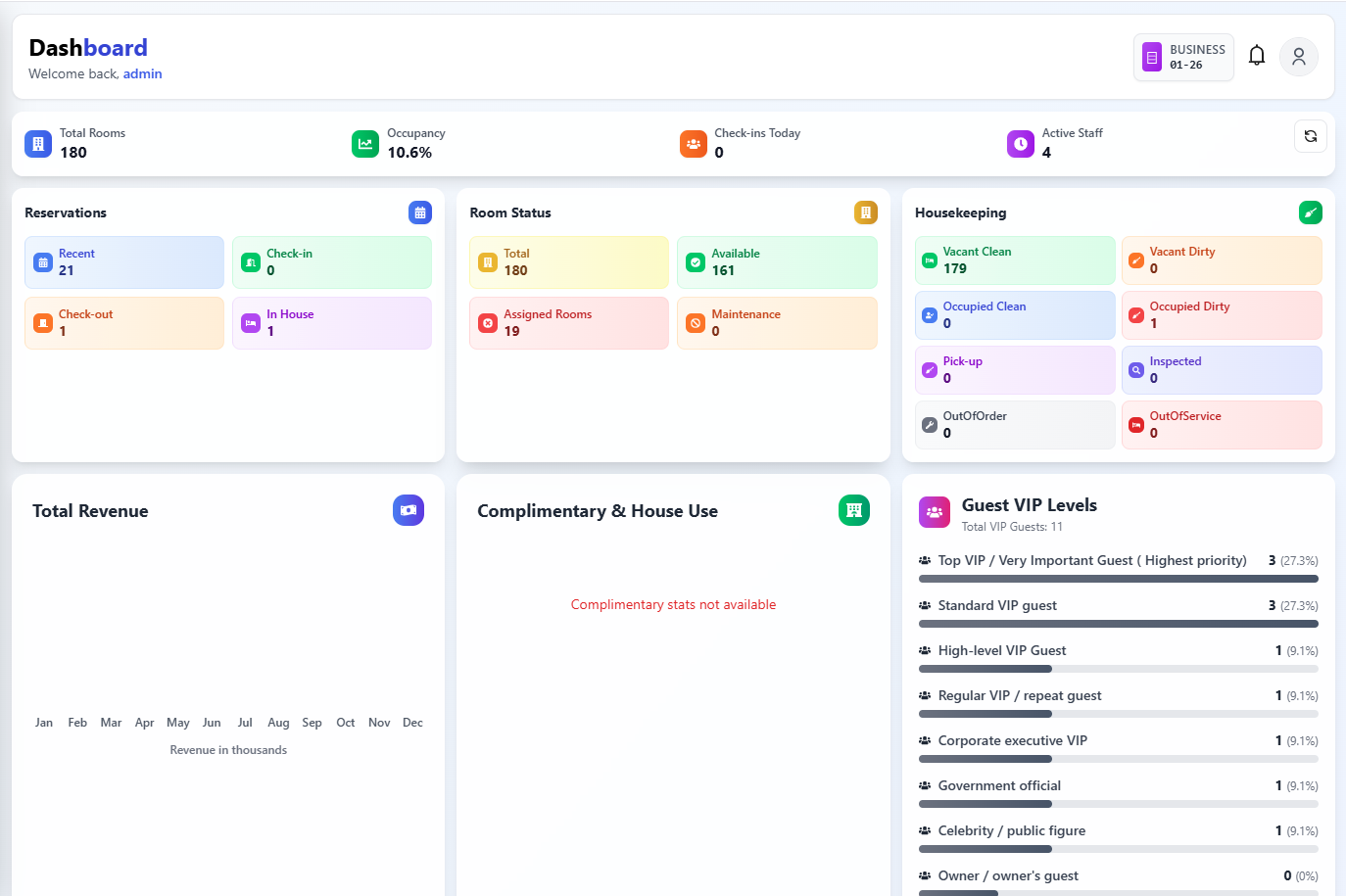
This page has Common FAQs and Troubleshooting below. For issues in other modules (reservations, front desk, cashiering, housekeeping, night audit, configuration, profiles), see the main Troubleshooting page — it links to module-specific FAQs and troubleshooting sections.
Overview Statistics
The dashboard displays:
- Room overview — Total rooms, current occupancy, occupancy rate, available rooms, room types, room classes
- Today's stats — Check-ins, check-outs, active staff, revenue
- Period stats — Recent reservations, monthly reservations, total/active guests, monthly revenue
- Room status — Total, available, occupied, maintenance, out of order
- Housekeeping — Vacant clean/dirty, occupied clean/dirty, pick-up, inspected, out of order, out of service
Key Widgets
Overview Stats Card
Shows the key property metrics at a glance:
| Stat | Description |
|---|---|
| Total Rooms | Total number of rooms in the property. |
| Occupancy Rate | Percentage of rooms currently occupied. |
| Available Rooms | Rooms that are vacant and ready to sell. |
| Today's Check-ins | Number of arrivals expected or completed today. |
| Today's Check-outs | Number of departures expected or completed today. |
| Active Staff | Number of users currently logged in. |
| Monthly Revenue | Revenue for the current month. |
| Monthly Reservations | Number of reservations created this month. |
Available Rooms Card
Shows a breakdown of available rooms by room type or room class. Use this to quickly see what you can sell or assign to walk-in guests.
Housekeeping Card
Summarises housekeeping statuses across all rooms:
| Status | Meaning |
|---|---|
| Vacant Clean | Room is empty and ready to sell. |
| Vacant Dirty | Room is empty but needs cleaning. |
| Occupied Clean | Guest is in-house and room has been serviced. |
| Occupied Dirty | Guest is in-house and room needs servicing. |
| Pick-up | Room needs a quick tidy (pick-up service). |
| Inspected | Room has been inspected and approved. |
| Out of Order | Room is blocked and not available. |
| Out of Service | Room is temporarily unavailable. |
Revenue Chart
A bar or line chart showing revenue over a selected period (daily, weekly, or monthly). Used for a quick visual of revenue performance. Hover over bars to see exact amounts.
VIP Levels Chart
A chart showing the distribution of in-house or arriving guests by VIP level. Useful for prioritising service for high-value guests.
Complimentary Chart
Shows complimentary (comp) stays — reservations where the rate is zero or marked as complimentary. Useful for tracking comp usage.
Reservation Details Card
Shows recent or upcoming reservations with guest name, room type, arrival/departure, status, and number of nights. Use it to see the latest booking activity.
System Date
If your property uses a system date (business date) different from the actual date, it is shown on the dashboard. Night audit advances this date.
Quick Actions
Common actions are available as buttons or links:
- View reservations — Go to the reservation list
- New reservation — Open the new reservation form
- Room plan — Open the front desk room plan
- Housekeeping — Open housekeeping management
Use these to move quickly from the dashboard into the right module.
Navigation From Dashboard
From the dashboard you can go to:
- Reservation — List and new reservation
- Front Desk → Room Plan — Room plan view
- Housekeeping — Housekeeping management
Exact labels and actions depend on product version and permissions.
Common FAQs
Why don't I see the Dashboard after login?
The Dashboard is the default home after login. If you are sent somewhere else, your role or configuration may define a different landing page. Use the Dashboard item in the sidebar to open it.
What is the system date on the dashboard?
If your property uses a system (business) date different from the real date, it is shown on the dashboard. Night audit advances this date. New reservations, rates, and reports use the business date as "today."
How do I go to a new reservation from the dashboard?
Use the New reservation quick action (or equivalent). It opens the new-reservation form. You can also go to Reservation in the sidebar and click New Reservation.
Why do my dashboard numbers not match other screens?
Dashboard stats are often cached or calculated at a specific time. Room plan and reports use live or filtered data. Check date filters and system date; refresh the dashboard if your product supports it.
Where do I see today's check-ins and check-outs?
The dashboard shows Today's stats (check-ins, check-outs). For the full list, use Reservation (filter by arrival/departure date) or Front Desk → In-House and Checked-Out.
Troubleshooting
| Problem | Cause | Solution |
|---|---|---|
| Dashboard shows wrong property | The active property (hotel) is not the one you expect. | Use the hotel switcher (if multi-property) to select the correct property. |
| Widget or stat missing | Your permissions or configuration may hide that widget. | Confirm your role can see that stat. Some widgets depend on System Settings (e.g. VIP, revenue). |
| Quick action does nothing or is missing | Permission or product version may not include that action. | Check Roles and permissions. Use the sidebar to go to the module (e.g. Reservation, Housekeeping) if the quick action is hidden. |
| System date is behind or ahead | Night audit may not have been run, or was run for a different date. | Night audit advances the business date. Ensure it is run once per day; check with your night auditor or administrator. |
For login, permissions, wrong property, and other general issues, see Troubleshooting.
See also
- Reservations — List and new reservation; quick actions from dashboard.
- Front Desk — Room plan quick action.
- Housekeeping — Housekeeping quick action; dashboard housekeeping summary.
- Reports — For detailed reports, use Report in the sidebar.